
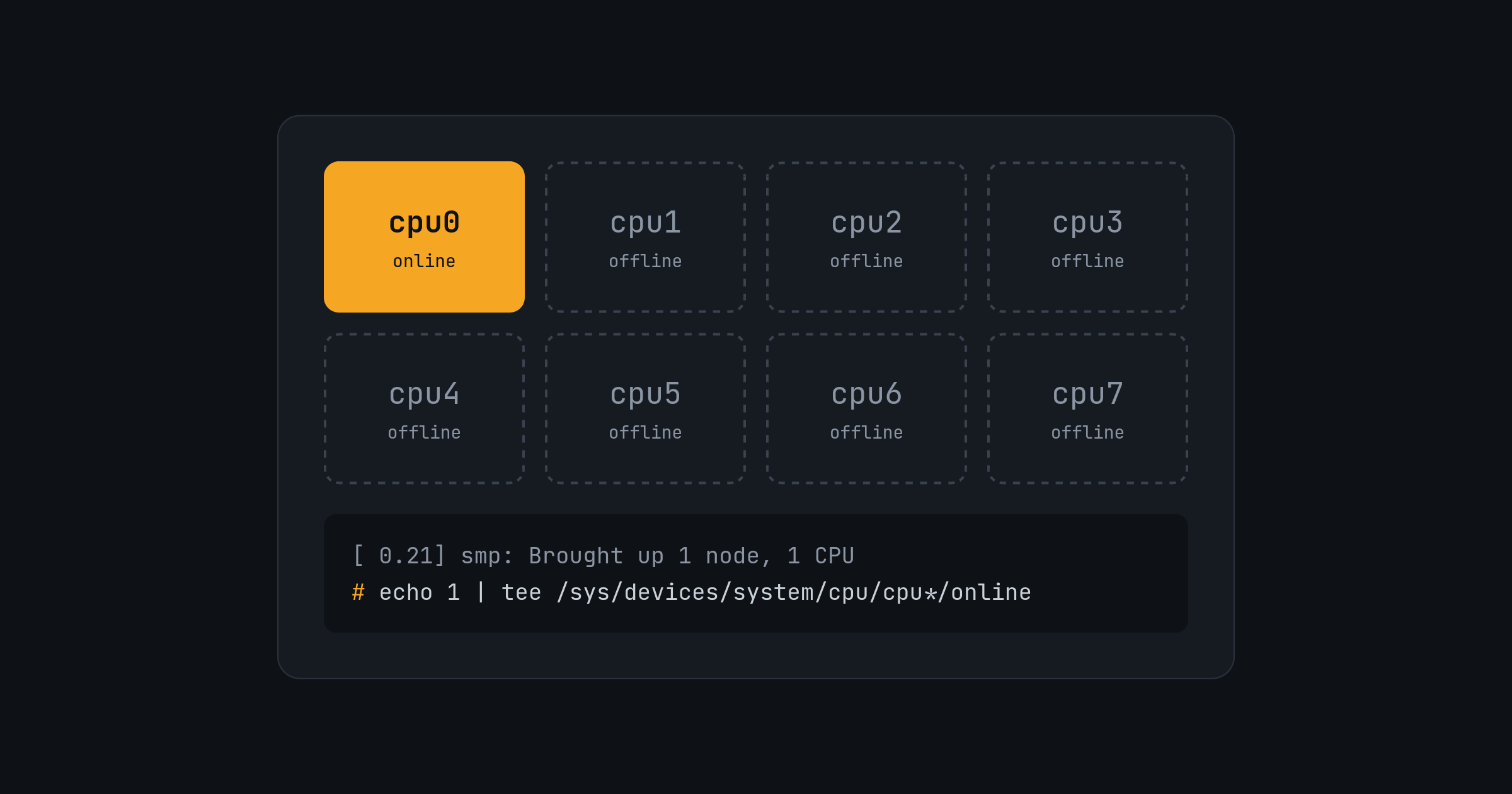
maxcpus=1 and a small systemd service that brings the remaining CPU threads online after boot. Not a proper fix, but it works!My laptop celebrated its 10th birthday this summer, and it is still going strong. Originally shipped with Windows 7 (Home Premium), it made all stages up-to and including Windows 10. For a long time now, however, I've been running on Manjaro (that's Arch!) Linux with Kernel 6.1 LTS.
My veeery (😉) sophisticated setup deserves a blog post of its own, but today we're keeping things simple: upgrading to 6.18 LTS and, more importantly, getting the thing to work again.
Why update the kernel?
There are a couple of good reasons to keep your Linux kernel up to date:
- Security: The patching of vulnerabilities and other improvements
- New Hardware Support, Fair enough, not really relevant if you're running an old system :)
- Performance Improvements, like Scheduling or Memory Management
- Bug Fixes & Stability: Solving existing issues


Left: The device I am writing this post on (it's got DVD!) | Right: A 12€ mug I'd install proper Arch for.
Did I need to update the kernel?
Honestly? No. Like, eventually, yes, but right now, no.
The 6.1 kernel I am currently running on will be supported until December 2027, so a bit more of a year. But I have been previously trying to update the kernel to newer versions, such as 6.6 LTS and 6.12 LTS, and failed as well.
But yesterday I took a new attempt.. with the 6.18 LTS one :)
Let there be ... darkness
After installing the 6.18 LTS Kernel, I was greeted with... darkness. The grub menu disappeared, and the screen stayed black. No output, nothing.I have seen the same thing before with the 6.6 and 6.12 Kernel, so nothing that really surprised me, more of a hope that it was caused by a kernel issue fixed earlier. Didn't look like it.
So the investigation of possible causes started. In many support forums, the kernel boot parameter nomodeset is suggested, as this device has two graphics cards (an Intel and NVIDIA) with a hybrid output, sometimes causing issues.
Of course, I have tried this one before without success. So I went full rogue and set acpi=off. It tells the system to ignore ACPI completely.
ACP.. what?
ACPI is the standard way your computer’s operating system and its hardware talk about power and configuration. Through it, Linux learns things like how to turn the machine off, put it to sleep, read the battery level, control fans, react to the power button, and even discover some of the hardware inside the machine.
So, it's quite useful, and not something that you should disable forever. Switching it off is a troubleshooting trick. On some computers the ACPI information built in by the manufacturer is buggy, so Linux freezes at startup or behaves strangely. With acpi=off, Linux skips that faulty information and often boots fine.
It boots, but it doesn't work
The system may boot, but it’s working half-blind, and that’s what happened in my case. Only one CPU was available: without ACPI, Linux couldn’t see the other processor cores, so everything ran on a single one and felt noticeably slower. The network didn’t work, because the network card depends on ACPI to be found and set up correctly, so it either wasn’t detected or its driver couldn’t start. Sound had driver issues for the same reason: the audio hardware couldn’t be configured properly, so the sound driver failed or misbehaved.
Subsequently, I tried to resort to other options: Only disabling a certain part of the ACPI system, trying other combinations of boot flags, and many more.
Turn it off... and on again (but later)
I was about to give up, when I decided to ask an LLM which suggested to boot with maxcpus=1. That worked, but obviously cost me 87.5% of my processing capacity, so not really ideal.
Little did I know you can turn on CPU threads later (while your system is running)
The kernel supports hotplugging of CPU threads, by writing to sysfs attributes which Linux exposes as something that "looks like a file" - you can read it, and you can write to it. For example, to turn the second logical CPU on (0-indexed!), you'd issue
echo 1 | sudo tee /sys/devices/system/cpu/cpu1/onlineTurning on the second thread of your CPU
And I was very glad to see that it seemed to work. So a little script was written:
#!/bin/sh
set -eu

for cpu_online in /sys/devices/system/cpu/cpu*/online; do
    [ -e "$cpu_online" ] || continue
    if [ "$(cat "$cpu_online")" = 0 ]; then
        printf '1\n' > "$cpu_online"
        printf 'Brought %s online\n' "${cpu_online%/online}"
    fi
done
linux618-online-cpus.sh, at your service
It's very simple: It loops over all available exposed CPUs, and enables them by writing 1 to the attribute. Of course, I don't want to run this every time myself, so we need a oneshot service doing it for us:
[Unit]
Description=Bring secondary CPUs online after Linux 6.18 starts
Wants=systemd-user-sessions.service
After=systemd-user-sessions.service
ConditionKernelCommandLine=maxcpus=1
ConditionPathExists=/sys/devices/system/cpu/cpu1/online

[Service]
Type=oneshot
ExecStart=/usr/local/libexec/linux618-online-cpus

[Install]
WantedBy=multi-user.target
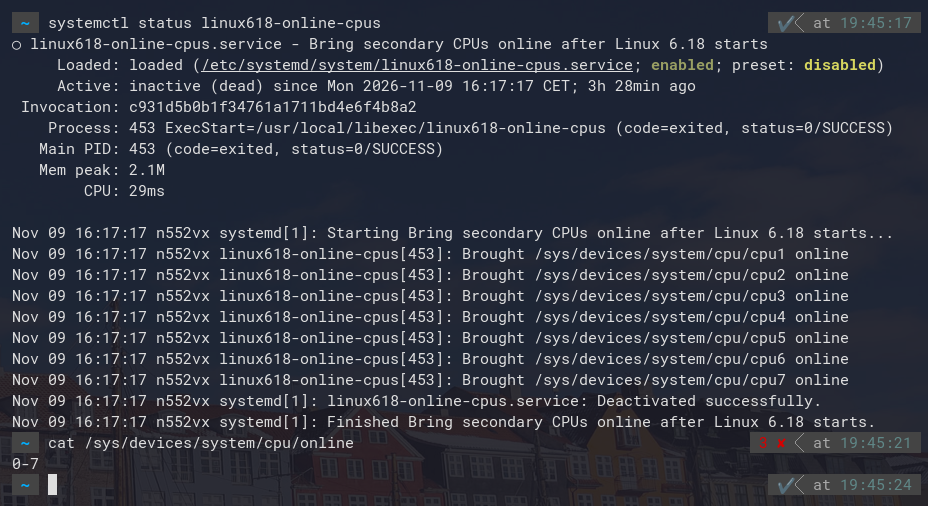
A short reboot confirms success:
I still don't really know what's causing the underlying issue. I've managed to narrow it down to SMP (Symmetric Multiprocessing) initialisation – essentially, the point during boot where the kernel brings the other CPU cores online.
Unfortunately, that's about as far as I've gotten. My best guess is some sort of firmware or motherboard bug causing a race condition during CPU initialisation.
It's not exactly a proper fix, but hey, all eight CPU threads are back online, the laptop boots, and everything seems to be working again. I'll take that!
And that's it from today! Thanks! :D


